Settings
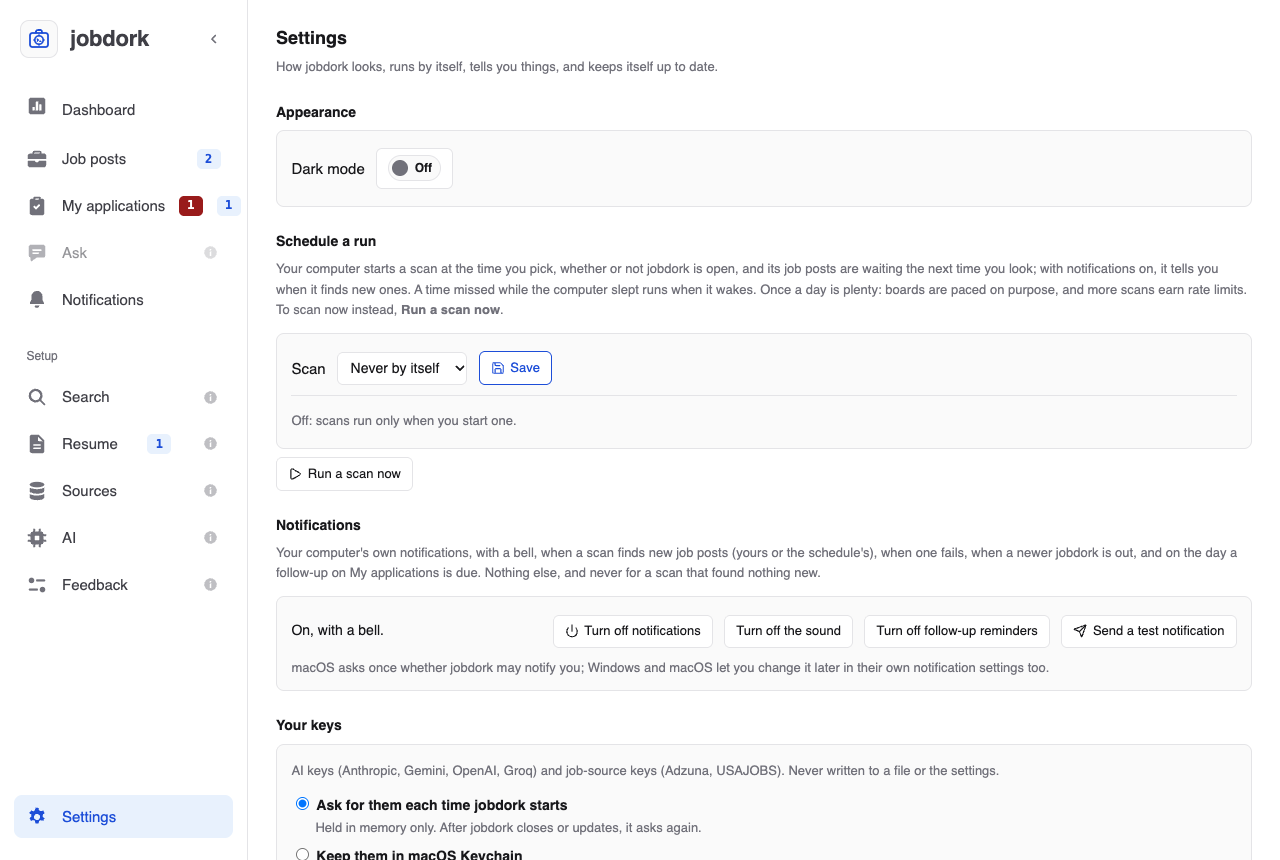
The gear at the bottom of the menu: how jobdork looks, runs by itself, tells you things and keeps itself up to date.
Appearance
Dark mode on or off. Until you choose, it follows your computer's light or dark setting.
Schedule a run
Your computer starts a scan at the time you pick, whether or not jobdork is open, and the new job posts are waiting the next time you look.
- Scan: Never by itself, Every day, Every weekday or Once a week (then pick the day), at a time. Save.
- A time missed while the computer was asleep runs when it wakes.
- Once a day is plenty: job boards are read slowly on purpose, and more scans get you blocked for a while.
- Run a scan now starts one at once.
Turned off (Never by itself, then Save), the schedule is kept here: Off. Kept from before: every day at 08:00, with Run it now (one scan, at once) and Turn it back on (the same days and time again).
Closing jobdork with a scan scheduled
A scheduled scan does not need jobdork open: your computer starts it, and it stops when it is done. So closing the jobdork window with a schedule on asks Keep the scheduled scan?
- Keep it and close: the scans go on while jobdork is closed.
- Turn it off and close: no scan runs by itself. The schedule is kept here, to run or turn back on next time.
- Cancel: jobdork stays open.
Tick Don't ask again when I close jobdork to keep it without being asked. To be asked again, Ask when I close jobdork, here under the schedule. Only the desktop app asks; a dashboard in your browser keeps running when its tab is closed.
It uses your computer's own scheduler (launchd on a Mac, Task Scheduler on Windows, cron on Linux). In Docker there is no scheduler inside the container: use the host's, as the Docker guide shows.
Notifications
Your computer's own notifications, with a bell, when a scan finds new job posts (yours or the schedule's), when a scan fails, when a newer jobdork is out, and when a follow-up is due. Never for a scan that found nothing new.
Turn them off, their sound off, or only the follow-up reminders off (Turn off follow-up reminders), with the buttons here. Send a test notification checks they reach you. (On a Mac the desktop app asks your permission when its window first opens; in Docker, the page rings a bell while it is open instead.)
A notification stays on screen until you close it: on Windows it has a Dismiss button, on Linux it is marked urgent (most desktops keep those), and the Mac app's notifications are Alerts. A Mac lets you change that in System Settings → Notifications → jobdork, and notifications from jobdork run outside the app (in Terminal) go as banners, which macOS closes by itself.
Clicking a notification from the desktop app opens jobdork on its
Notifications page, or brings its window to the
front there when it is open already. On Linux that needs a
notify-send with actions (most desktops since 2021); older ones show the
notification without the click. If a Mac shows no notifications at all,
allow jobdork in System Settings → Notifications.
The Notifications page
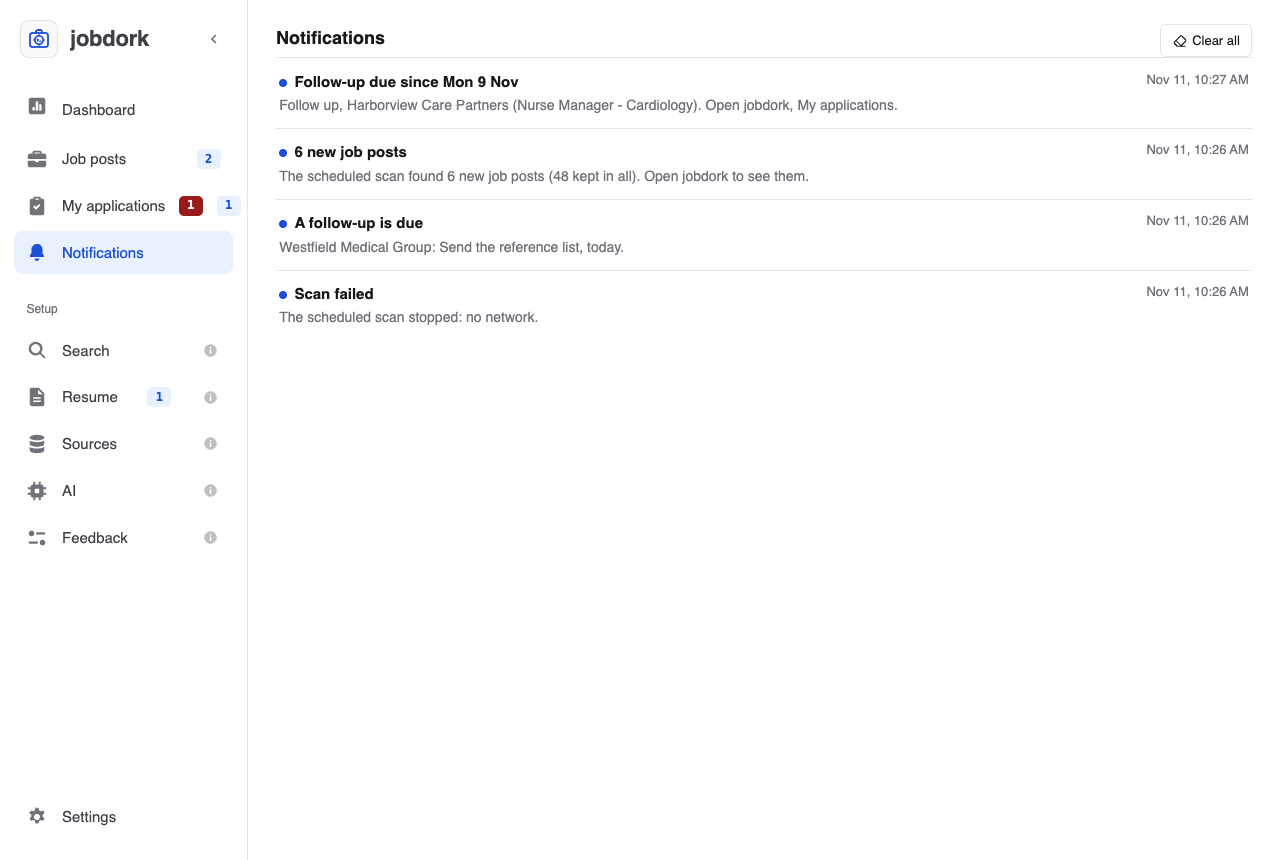
Notifications, in the menu, lists every notification jobdork sent, newest first, with when: the ones you closed, and the ones this computer could not show (in Docker, say). A count beside it says how many you have not seen. Click one to open what it was about (new job posts open Job posts, a follow-up My applications, a failed scan the Dashboard). Clear all empties the list. With none, the page says only "You have no notifications from jobdork". It keeps the newest 500.
Your keys
Where AI keys (Anthropic, Gemini, OpenAI, Groq) and job-source keys (Adzuna, USAJOBS) go. Never into a file or the settings.
- Ask for them each time jobdork starts: held in memory only. When
jobdork closes or updates they are gone, and when it starts again a window,
Enter your keys, asks for the ones your AI page and job sources use.
A key already set in your computer's environment, outside jobdork (such
as
OPENAI_API_KEYin a shell profile, or withlaunchctl setenvon a Mac), is not asked for: the window names it and the variable, and lets you paste another to use instead until jobdork closes. Not now leaves it until the next start; the AI page and the Sources page take them too. - Keep them in this computer's keychain (macOS Keychain, Windows
Credential Manager, or the Secret Service on Linux): encrypted with your
login, so you enter each key once. Turning it on keeps the keys you have
entered so far; turning it off removes the kept copies.
- On a Mac, after each jobdork update the Mac asks once to let jobdork use the keychain (once for all your keys, which are kept together): enter your Mac login password and choose Always Allow. Until you do, a scheduled scan runs without the kept keys.
- In a container or on Linux without a Secret Service, there is no keychain to keep them in; the page says so. In a container, give keys in its environment instead.
- Forget saved keys removes every key kept in the keychain. Keys held now stay until jobdork closes. Start over on the Dashboard and removing jobdork (below) also remove them, always: kept keys never outlive jobdork on your computer.
Earlier versions (0.15.1 and before) kept Adzuna and USAJOBS keys in a plain file. The first start of a newer one asks where they go, Keep them in the keychain or This time only, and deletes the file either way.
Updates
Which version you have and whether a newer one is out. When one is, a banner says so at the top of every page; its Update starts the update at once, in the same window as below (from the release after 0.16.0; in 0.16.0 and before it only opens this page, so press Update to here).
- Check now asks at once. When GitHub cannot be reached it says so and why (offline, GitHub limiting requests from your network, a certificate it could not verify), and offers Release page to look yourself.
- Update (in the desktop app) opens a window that follows each step:
asking GitHub for the release, downloading the installer (with how much
is done), checking it against the release's checksums, checking it was
built by jobdork's own release workflow (its build attestation), and
putting it in place. An installer that fails a check is deleted, not
opened. Then jobdork restarts as the new version by itself:
- Mac: the new app replaces this one in its folder, jobdork closes, and the new version opens a few seconds later. No Finder window, no dragging.
- Windows: the installer runs on its own with a progress bar, closes jobdork, and opens the new version.
- Linux, the AppImage: as on a Mac, the new AppImage replaces this one where you keep it.
- Linux, the .deb: jobdork closes, your computer asks for your password to install it (a .deb is installed for everyone on the computer), and jobdork opens again. Without the password, the version you had opens again.
Where jobdork cannot replace itself (on a Mac: run from the disk image or from Downloads, or kept in a folder you cannot write; on Linux: an AppImage in a folder you cannot write), the installer opens instead (on Linux, the Downloads folder with it), and the window says how to finish by hand. If the update cannot finish, the window says why, with Release page to download it yourself. Your settings and job posts are kept either way. Elsewhere than the desktop app, Settings says how to update your copy, with Release page. - Turn off the daily check stops jobdork asking GitHub once a day. That check is one request for the number of the latest release; nothing about you is sent (privacy policy).
Built-in employer boards
All of the built-in employer boards on or off at once. Choose industries, or switch single boards off, on the Sources page.
Where your files are
Buttons that open the folders jobdork keeps things in: settings and the database, your resume, your letters and resumes, logs and backups. Use them to back up, move to another computer, or attach a log to a feedback report.
Clean up job posts
Delete old job posts you are not pursuing:
- Older than 15 or 30 days, or
- With status rejected, withdrawn, skipped or closed.
Preview first lists what would go; nothing is deleted until you press
the red button. Posts you applied to, or are interviewing or have an offer
for, are always kept. The database is backed up to data/backups/ before
every delete, and a deleted post stays deleted: later scans leave it out.
Remove jobdork from this computer
To take jobdork off your computer cleanly. The scheduled scan, the app window's storage (on a Mac, also what macOS keeps for the window in your Library folder) and any keys kept in your computer's keychain always go. Of yours, tick what to delete as well; anything not ticked is kept, so a reinstall finds it:
- Settings: what you search for, where, pay, the AI page.
- Job posts, with your statuses, notes and AI verdicts, and the backups of them.
- Your resume.
- Letters and tailored resumes jobdork wrote (in Documents, job-applications).
- Logs.
- Downloaded installers the Update button left in Downloads.
The last two say not looked at yet until you click Also look in Documents and Downloads: they are your own folders, so jobdork looks only when you ask (on a Mac, macOS asks once to let it in, and opening Settings should not be what asks). You can tick them without looking; whatever jobdork put there goes. The Folders list likewise leaves the documents folder alone until you click its Open.
Click Remove jobdork…, check the list it shows, then Yes, remove. The window then shows only jobdork was removed, what went, and one button: nothing else is asked of jobdork, so nothing you deleted comes back while the window is open. Quitting removes the same once more, and then the program itself, as the page says:
- Mac: Quit and move to the Trash: jobdork closes and moves itself from Applications to the Trash. Opened from its disk image, or from anywhere macOS ran it from a hidden copy, it cannot: then quit and drag it from Applications to the Trash yourself.
- Windows: use Settings, Apps, jobdork, Uninstall instead of this page: the uninstaller asks the same questions, and can remove files jobdork has open while it runs.
- Linux: the AppImage is moved to the Trash when you click Quit and
move to the Trash. For the .deb, Quit jobdork, then run
sudo apt remove jobdork.
From a terminal it is jobdork uninstall, which asks about each item, or
jobdork uninstall --remove jobs,logs (or all). Saved keys go either way.