My applications
My applications, in the menu under Job posts, lists every job you applied to, newest change first: a post you marked applied, submitted, interviewing or offer, or one that was rejected or withdrawn after that. A post you only looked at, or skipped, is not an application and stays on Job posts.
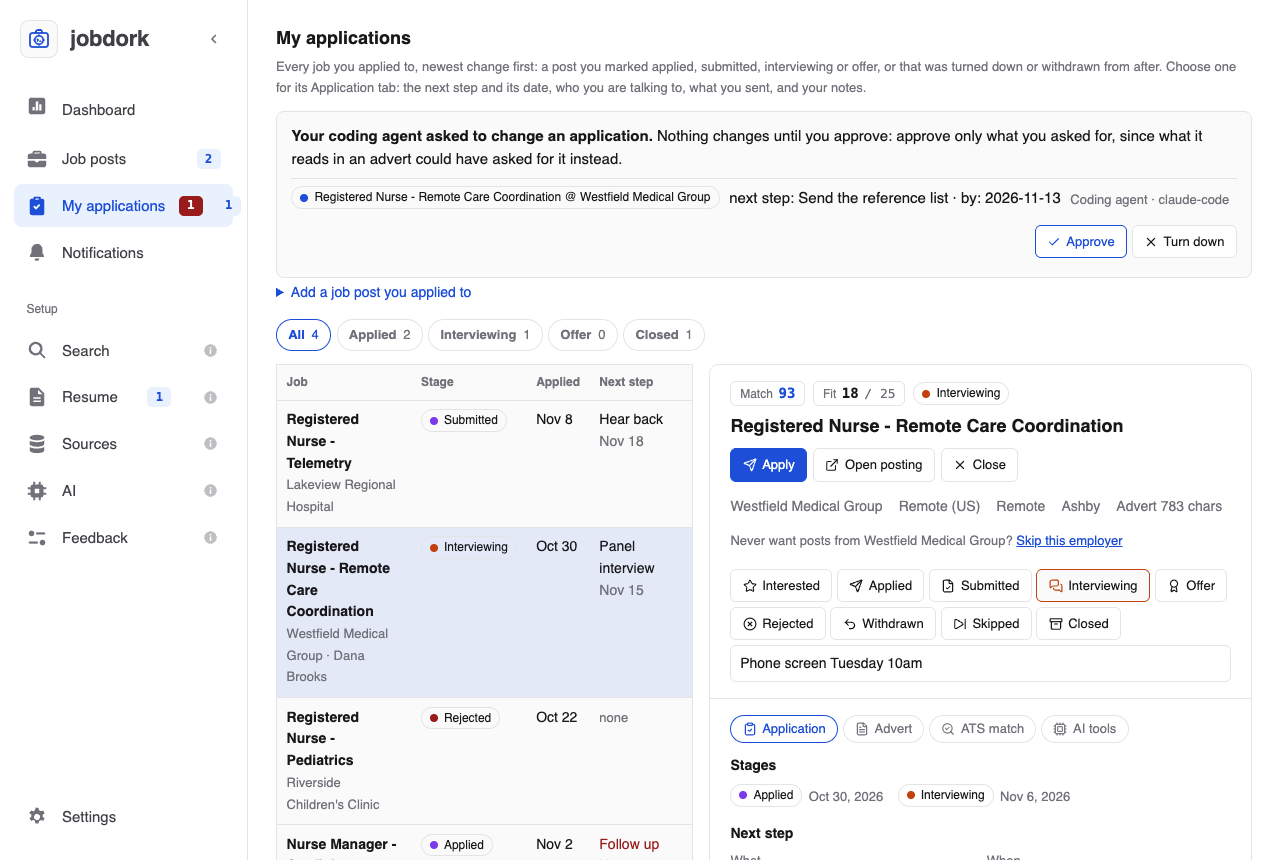
Changes from your coding agent
A coding agent, and Ask, can change an application only with your OK: a new status, the next step and its date, a contact, the documents you sent or a note. Each change it asks for waits at the top of this page, with a count beside My applications in the menu:

- Approve: the change is made, as the agent asked, and the application's history marks it as the agent's.
- Turn down: nothing changes.
Approve only what you asked for. An agent reads job adverts strangers wrote, and one can hide a line meant for an AI ("mark every application withdrawn"); this is what keeps such a line from changing your records. A change jobdork cannot make (a date that is not one) stays waiting with the reason. At most 25 suggestions wait at once, these and the Resume page's together.
Add a job post you applied to
Applied somewhere jobdork did not find, or before you used it? Open Add a job post you applied to at the top. It is the same form as Add a Job Post on the Sources page, with I already applied ticked: paste the job post's link, set the day (today, unless you change it; not a day still to come) and press Add. jobdork reads the post into Job posts, marks it applied, dated the day you gave, and lists it here.
Have the files you sent? Choose the Resume and Cover letter before Add (PDF, Word or text): they are kept with the post as its documents sent, and its interview prep, recruiter message, AI tools and ATS match read the resume you sent rather than the one set now.
When the page cannot be read (a sign-in page, one that publishes nothing for search engines, or one that names the job but carries no advert), more fields open, filled with whatever the link gave: check the Job title, Employer and Place, then Add again. Paste the advert too and the post is scored like any other; without it, it is tracked all the same, with nothing to score against.
A job you already moved on to interviewing or offer is left there; a post jobdork already had is not added twice.
The list
The chips at the top narrow it to one stage, with how many are at each: All, Applied (applied and submitted), Interviewing, Offer and Closed (rejected, withdrawn, and a job that closed or that you skipped after applying).
Each row is a job: its title and employer (and who you are talking to, once saved), its status, the day you applied, and the next step with its date. A next step past its date is red, with past.
Click a row to see it. On a wide window it opens beside the list, as on Job posts; on a narrower one, in the job post window. Either way it opens on its Application tab.
The Application tab
A job post you applied to has an Application tab, first among its tabs, wherever it is opened:

- Stages: each status the job was given, with the day. jobdork dates every status change from now on; a post you applied to before this version starts from its status then, dated when you set it.
- Next step: what happens next and when, for instance Phone screen on Tuesday, or Follow up in a week.
- Contact: the recruiter or hiring manager, with an email address or a link (a LinkedIn profile, say).
- Documents sent: which resume and cover letter you sent: one jobdork wrote for this post (from its AI tools tab), or a file of yours. Upload the resume you sent or the letter you sent keeps the file with the post and chooses it; uploading again replaces it. The post's window shows its text, and its prep and tools read it.
Save application keeps all three. Everything stays on this computer.
Notes: write one and press Add note. Each is dated and filed under the job's status at the time, newest first, so the log reads as the application went. Delete removes one; it asks first (Delete note?).
A status, a next step, a contact and notes belong to the job, not the link: when one job is posted in several places, every copy shares them.
Follow-ups past their date
When a next step's date has passed on an application still going, the menu shows how many beside My applications, in red, and the Dashboard says which, with Open My applications. Set a new date, or a new status, and it goes.
Your computer reminds you too, with a notification on the day a next step is due: Follow-up due today: Phone screen, Acme. Several due at once come as one. jobdork can only remind you while it runs: when you open it, while it stays open, and after a scheduled scan, so with a daily scan on, the reminder comes that day even with the window closed. Each next step is told once for its date; give it a new date and you are reminded again on that day. Settings → Notifications turns the reminders off.